Complete Guide to Fix Laptop Screen Rotation Problem
Quick Overview Laptop screen rotation fix methods help users solve sideways, upside-down, or stuck display orientation problems in Windows laptops quickly and safely. Moreover, many users experience sudden screen rotation issues because of shortcut keys, outdated graphics drivers, incorrect display settings, or auto-rotation conflicts. Consequently, understanding proper laptop screen rotation fix techniques can restore normal…
Quick Overview
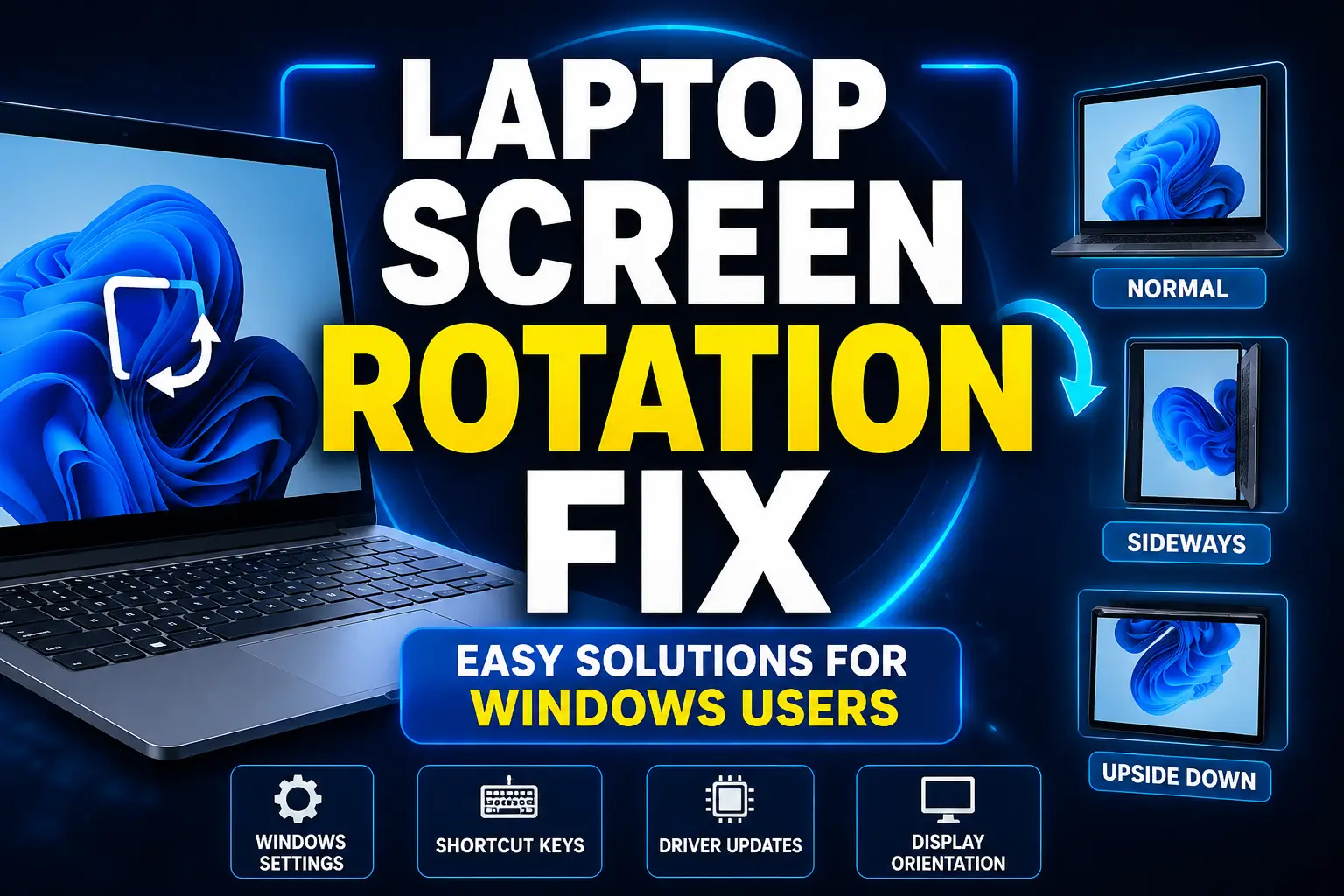
Laptop screen rotation fix methods help users solve sideways, upside-down, or stuck display orientation problems in Windows laptops quickly and safely.
Moreover, many users experience sudden screen rotation issues because of shortcut keys, outdated graphics drivers, incorrect display settings, or auto-rotation conflicts. Consequently, understanding proper laptop screen rotation fix techniques can restore normal orientation within minutes and improve overall Windows usability.
Additionally, many Windows laptops support automatic display rotation features. Consequently, incorrect settings, accidental keyboard shortcuts, outdated drivers, or sensor issues may trigger orientation problems unexpectedly.
Fortunately, this complete laptop screen rotation fix guide explains every important method step by step.
Table Briefing Section
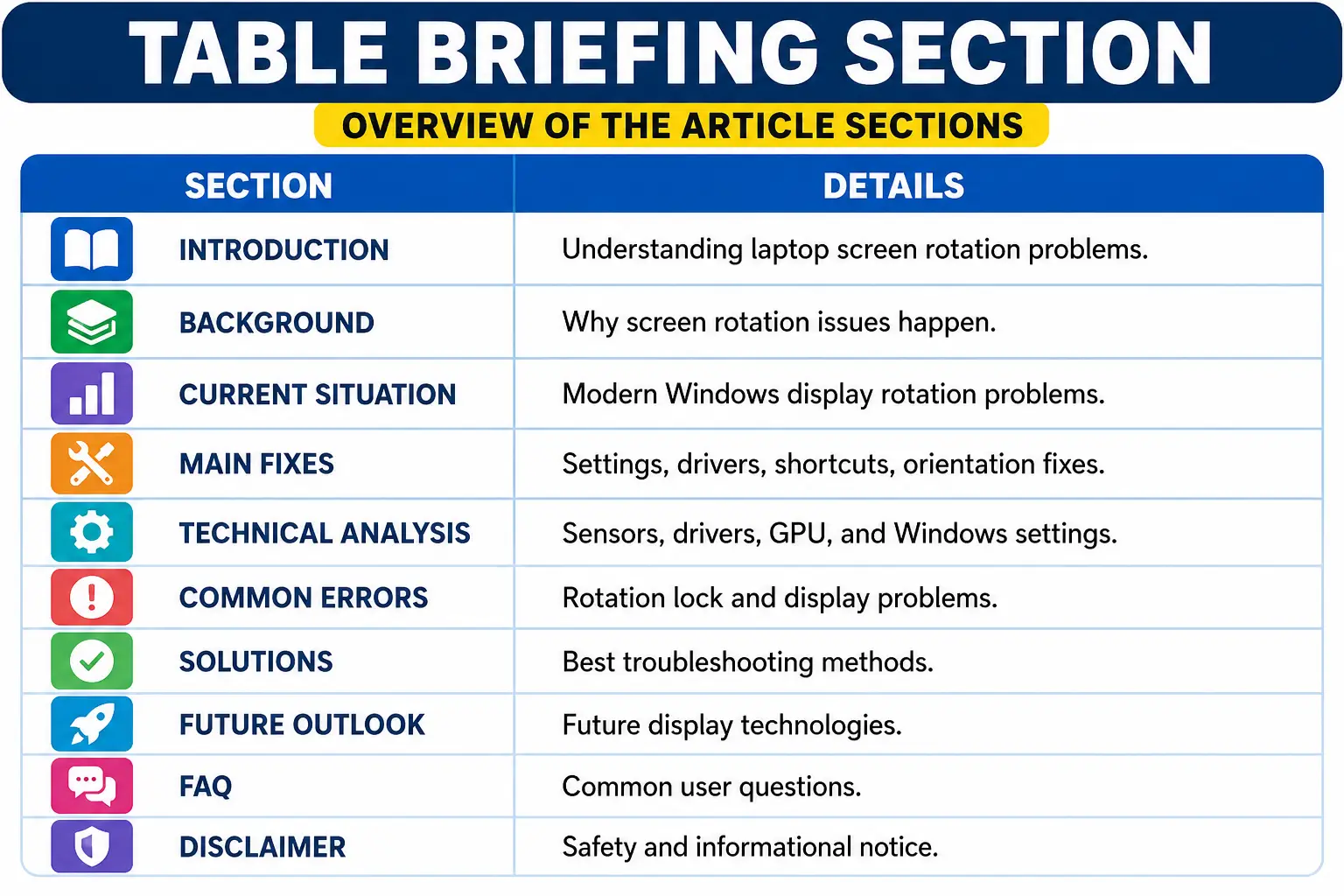
| Section | Details |
|---|---|
| Introduction | Understanding laptop screen rotation problems |
| Background | Why display rotation issues happen |
| Current Situation | Modern Windows orientation problems |
| Main Causes | Drivers, shortcuts, settings, and sensor issues |
| Main Solutions | Display settings and troubleshooting |
| Technical Analysis | GPU drivers and orientation systems |
| Common Mistakes | User mistakes causing display rotation |
| Tips or Solutions | Best troubleshooting practices |
| Future Outlook | Future rotation technology |
| FAQ | Common user questions |
| Disclaimer | Informational notice |
Introduction
Learning laptop screen rotation fix methods is important because many Windows users suddenly experience sideways or upside-down screens. However, most display rotation problems are software-related and can be solved easily. Moreover, users often accidentally trigger orientation shortcuts without realizing it.
Additionally, modern laptops now support touchscreen and auto-rotation technology. Consequently, Windows orientation systems sometimes malfunction because of sensor issues, outdated drivers, or incorrect display settings.
Therefore, understanding laptop screen rotation fix solutions helps users restore normal display orientation quickly and safely.
Why Laptop Screen Rotation Problems Happen
Display rotation problems usually occur because of:
- accidental shortcut keys
- outdated graphics drivers
- Windows update conflicts
- sensor malfunctions
- incorrect orientation settings
- rotation lock issues
Consequently, the screen may rotate unexpectedly or remain stuck.
Benefits of Learning Laptop Screen Rotation Fix Methods
Understanding laptop screen rotation fix techniques helps users solve problems independently. Moreover, users can avoid unnecessary technician costs and restore productivity quickly.
Additionally, troubleshooting skills improve overall Windows knowledge and confidence.
Background
Display rotation features became popular after touchscreen laptops and convertible devices entered the market. However, traditional laptops also support orientation changes through Windows display settings and graphics software.
Evolution of Laptop Screen Rotation Fix Technology
Earlier Windows systems provided limited display controls. Nevertheless, modern Windows versions now include advanced orientation settings and automatic sensor-based rotation features.
Consequently, users can easily switch between landscape and portrait modes.
Why Modern Devices Need Laptop Screen Rotation Fix Solutions
Convertible laptops automatically rotate displays according to physical movement. However, software conflicts and hardware sensor issues sometimes interrupt these features.
Therefore, users frequently search for laptop screen rotation fix guides online.
Current Situation
Today, many users experience display rotation issues after updates, accidental shortcuts, or graphics driver conflicts.
Common Signs Before Laptop Screen Rotation Fix
Users usually notice:
- upside-down screen
- sideways display
- portrait mode stuck
- auto rotation not working
- flickering orientation changes
- rotation lock problems
Consequently, using the laptop becomes difficult and frustrating.
Why Users Need Laptop Screen Rotation Fix Guides
Windows orientation systems are advanced but sometimes unstable. Moreover, automatic rotation features occasionally malfunction after updates or driver installations.
Therefore, users require safe troubleshooting methods.
Causes Or Main Factors
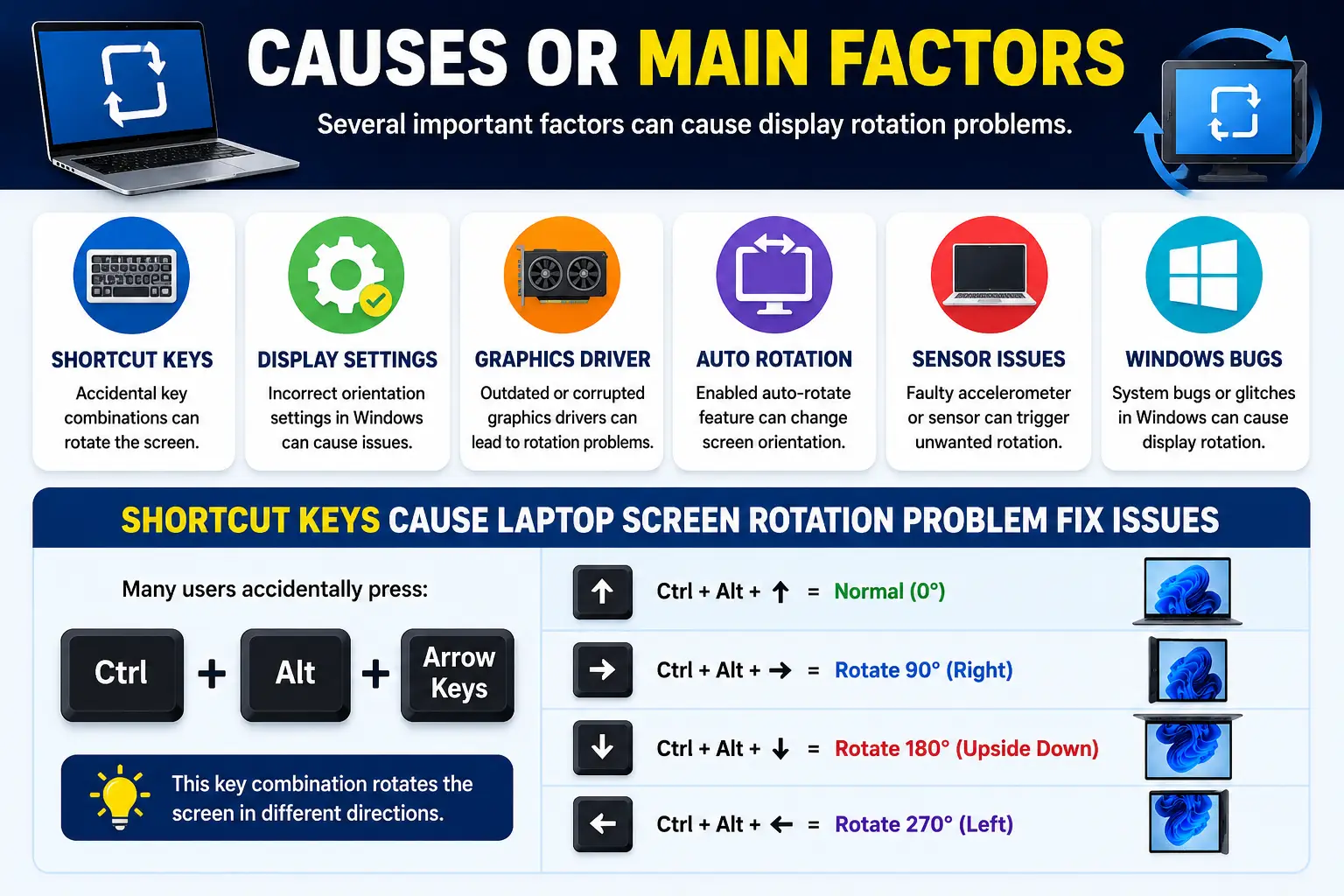
Several important factors can cause display orientation problems.
Shortcut Keys Cause Laptop Screen Rotation Fix Issues
Many users accidentally press:
Ctrl + Alt + Arrow KeysConsequently, the display rotates unexpectedly.
Why Shortcut Keys Affect Display Orientation
Windows supports built-in orientation shortcuts. Therefore, pressing these combinations changes the screen direction instantly.
Moreover, gaming keyboards and accidental typing frequently trigger these shortcuts.
Graphics Drivers Affect Laptop Screen Rotation
Outdated or corrupted graphics drivers frequently create orientation issues.
Why Graphics Drivers Matter
Graphics drivers control display rendering and orientation settings. Consequently, corrupted drivers may cause sideways or upside-down screens.
Furthermore, GPU software sometimes overrides Windows display settings.
Rotation Lock Causes Laptop Screen Rotation Problems
Windows includes a Rotation Lock feature for tablets and touchscreen devices.
Why Rotation Lock Creates Issues
Rotation Lock prevents automatic orientation changes intentionally. Consequently, the screen may remain stuck in portrait or landscape mode.
Moreover, users often enable this setting accidentally.
Use Shortcut Keys For Laptop Screen Rotation
Keyboard shortcuts provide one of the fastest troubleshooting methods.
Correct Shortcut Keys For Laptop Screen Rotation Fix
Press:
Ctrl + Alt + Up ArrowThis restores normal landscape orientation.
Other combinations:
- Left Arrow → rotate left
- Right Arrow → rotate right
- Down Arrow → upside down
Why Shortcut Keys Help
Many orientation issues occur because of accidental key combinations. Therefore, restoring default orientation immediately solves the problem.
Additionally, this method requires no software installation.
Use Display Settings For Laptop Screen Rotation Fix
Windows display settings allow manual orientation control.
Open Display Settings For Laptop Screen Rotation Fix
Right-click desktop.
Then:
- Open Display Settings
Find:
Display OrientationChoose:
LandscapeWhy Display Settings Work
Incorrect orientation settings frequently cause sideways screens. Consequently, selecting the correct orientation restores normal viewing.
Disable Rotation Lock For Laptop Screen Rotation Fix
Rotation Lock may stop automatic screen rotation completely.
How To Disable Rotation Lock
Go to:
- Settings
- System
- Display
Disable:
Rotation LockWhy Rotation Lock Causes Problems
Rotation Lock prevents orientation changes intentionally. Consequently, auto rotation stops functioning properly.
Update Drivers For Laptop Screen Rotation Fix
Graphics drivers are essential for display orientation stability.
How To Update Graphics Drivers
Search:
Device ManagerExpand:
- Display Adapters
Right-click GPU driver.
Select:
Update DriverWhy Driver Updates Help
Updated drivers improve compatibility with Windows systems. Moreover, they fix display-related bugs and orientation conflicts.
Use Intel Graphics Settings For Laptop Screen Rotation Fix
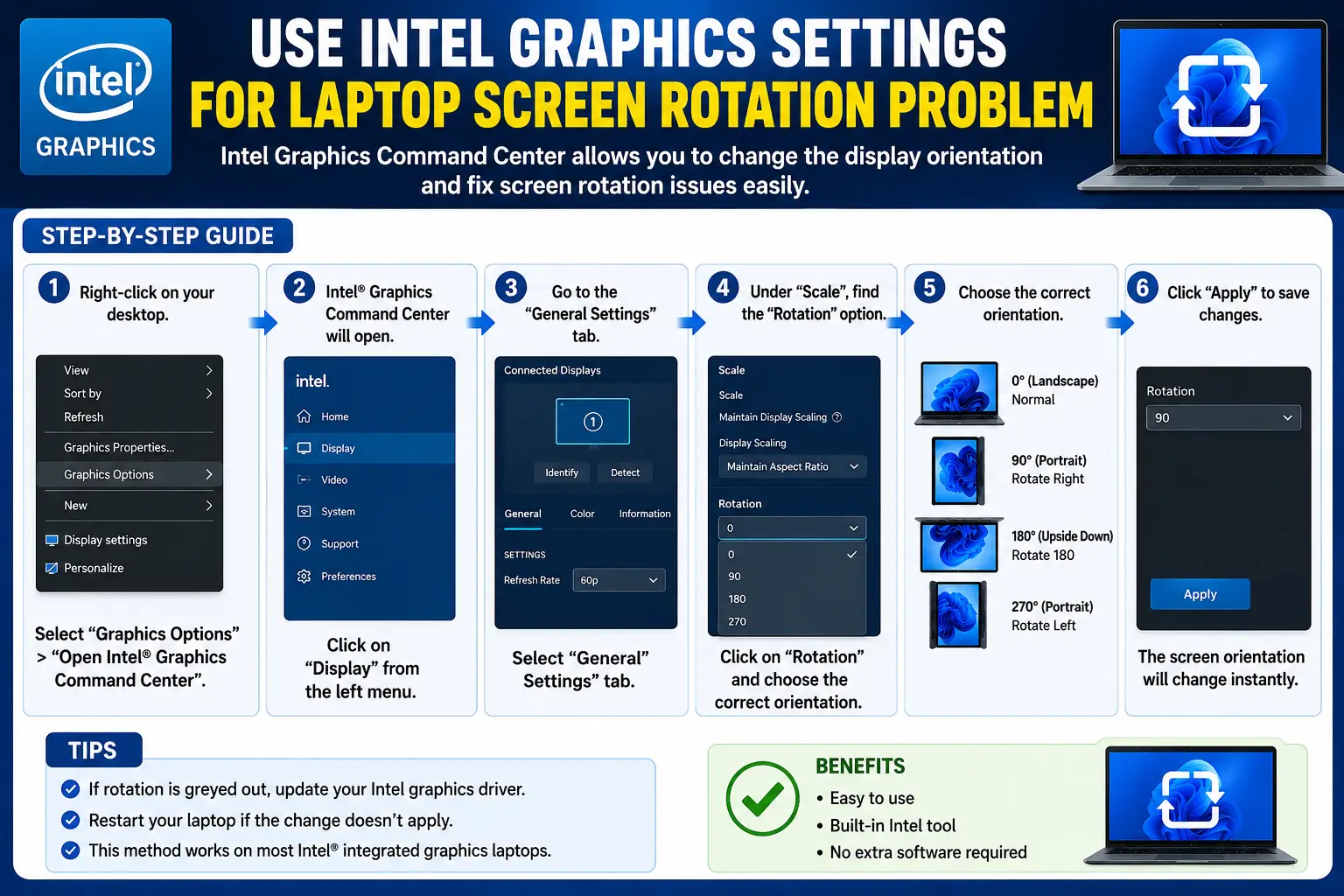
Intel graphics software includes built-in orientation controls.
Open Intel Graphics Command Center
Search:
Intel Graphics Command CenterThen:
- Display
- Rotation
- Select Normal
Why Intel Settings Help
Intel graphics software sometimes overrides Windows settings. Therefore, correcting Intel orientation settings solves many display issues.
Restart Windows Explorer For Laptop Screen Rotation Fix
Windows Explorer occasionally glitches after orientation changes.
Restart Explorer Process
Open Task Manager.
Find:
Windows ExplorerClick:
RestartWhy Restarting Helps
Explorer controls many desktop interface functions. Consequently, restarting refreshes orientation settings successfully.
Run Windows Update For Laptop Screen Rotation Fix
Microsoft updates frequently repair display bugs.
Check For Updates
Go:
- Settings
- Windows Update
Install latest updates.
Why Updates Solve Problems
Windows updates improve hardware compatibility and graphics stability. Consequently, many orientation issues disappear after updating.
Use Safe Mode For Laptop Screen Rotation Fix
Safe Mode helps identify software conflicts.
Open Safe Mode
Press:
Shift + RestartThen:
- Troubleshoot
- Advanced Options
- Startup Settings
- Safe Mode
Why Safe Mode Helps
Safe Mode disables unnecessary software and startup applications. Consequently, users can identify conflicting programs easily.
What To Do If Laptop Screen Rotation Fix Still Does Not Work
If the laptop screen rotation fix methods still fail, then the issue may involve deeper system conflicts, damaged sensors, corrupted drivers, or hardware faults. Therefore, advanced troubleshooting becomes necessary.
Additionally, users should completely uninstall graphics drivers and reinstall the latest official versions from Intel, NVIDIA, or AMD websites. In many cases, corrupted GPU drivers continue causing orientation problems even after updates. Consequently, clean driver installation often restores normal functionality.
Furthermore, users should verify whether tablet mode or sensor services are disabled accidentally. Convertible laptops heavily depend on orientation sensors. Therefore, disabled sensor services may cause continuous portrait or sideways display problems.
Moreover, Safe Mode testing can help identify third-party software conflicts. Additionally, Windows System Restore may reverse corrupted settings if the issue started after recent updates or software installations.
Finally, if none of the troubleshooting methods solve the laptop screen rotation fix issue, then professional technician inspection may become necessary because the problem could involve damaged hardware sensors or motherboard faults.
What To Do If Laptop Screen Rotation Fix Still Does Not Resolve
Reinstall Graphics Drivers For Laptop Screen Rotation Fix
If the laptop screen rotation fix methods still fail, then users should completely uninstall the graphics drivers and reinstall the latest official versions carefully. Moreover, corrupted GPU drivers frequently continue causing orientation problems even after normal updates. Consequently, performing a clean driver installation can restore proper display functionality successfully.
Additionally, users should download drivers only from official Intel, NVIDIA, or AMD websites because third-party driver tools sometimes install unstable files. Therefore, official drivers provide better compatibility, stability, and orientation support for Windows laptops.
Check Sensor Services For Laptop Screen Rotation Fix
Convertible laptops heavily depend on motion sensors and tablet mode services for automatic rotation features. However, if these services become disabled accidentally, then the display may remain stuck in portrait or sideways orientation continuously.
Furthermore, users should open Windows Services Manager and verify that sensor-related services are running properly. Consequently, enabling these services often restores automatic display rotation immediately.
Moreover, users should also disable and re-enable tablet mode because temporary Windows glitches sometimes interrupt orientation detection unexpectedly.
Perform System Restore For Laptop Screen Rotation Fix
If the problem started after a Windows update, software installation, or driver modification, then Windows System Restore may help significantly. Additionally, restoring the system to an earlier working point can reverse corrupted display settings and driver conflicts effectively.
However, users should backup important files before starting System Restore because some recently installed applications may be removed during the recovery process. Nevertheless, this method frequently solves deep orientation conflicts successfully.
Use Safe Mode For Laptop Screen Fix Troubleshooting
Safe Mode disables unnecessary startup programs, background services, and third-party applications. Therefore, testing the system in Safe Mode helps users identify whether another application is interfering with orientation settings.
Moreover, if the laptop screen rotation fix issue disappears in Safe Mode, then a third-party application is most likely causing the problem. Consequently, users should remove recently installed software carefully and restart the system normally.
Reset Display Settings For Laptop Screen Fix
Sometimes incorrect orientation configurations remain saved inside Windows settings even after applying multiple fixes. Therefore, resetting display settings completely can help restore normal orientation behavior.
Additionally, users should disconnect external monitors temporarily because multiple display setups sometimes create orientation conflicts. Consequently, Windows may incorrectly detect screen orientation and resolution settings.
Furthermore, restarting the system after resetting display settings improves the chances of successful orientation recovery.
Check BIOS Settings For Laptop Screen Rotation
If all software troubleshooting methods fail, then the problem may involve BIOS settings or damaged hardware sensors. Moreover, some laptops include built-in orientation hardware that controls automatic screen rotation independently.
Therefore, users should check BIOS updates from the official manufacturer website carefully. Additionally, damaged accelerometers or sensor hardware may require professional technician inspection and repair.
Consequently, hardware diagnosis becomes important if orientation problems continue permanently after all software fixes.
Benefits / Impact
There are several advantages when users apply laptop screen rotation fix methods.
Faster Troubleshooting
Users can restore normal orientation within minutes. Consequently, productivity improves significantly.
Better User Experience
Correct orientation improves readability and comfort. Moreover, users avoid frustration and workflow interruption.
Reduced Repair Costs
Most orientation issues are software-related. Therefore, users can solve problems without expensive repairs.
Deep Analysis
Understanding technical concepts improves troubleshooting success.
Sensors And Laptop Screen Rotation error
Convertible laptops use motion sensors for automatic orientation.
How Sensors Work
Sensors detect physical movement continuously. Consequently, Windows changes orientation automatically.
Why Sensor Problems Occur
Disabled or corrupted sensor drivers interrupt automatic rotation functionality.
GPU Drivers And Laptop Screen Rotation solution
Graphics drivers control display rendering and orientation systems.
Why GPU Drivers Matter
GPU software communicates directly with Windows display settings. Consequently, corrupted drivers may trigger orientation problems.
Why Updates Improve Stability
Updated drivers improve compatibility with Windows updates and modern hardware systems.
Common Mistakes
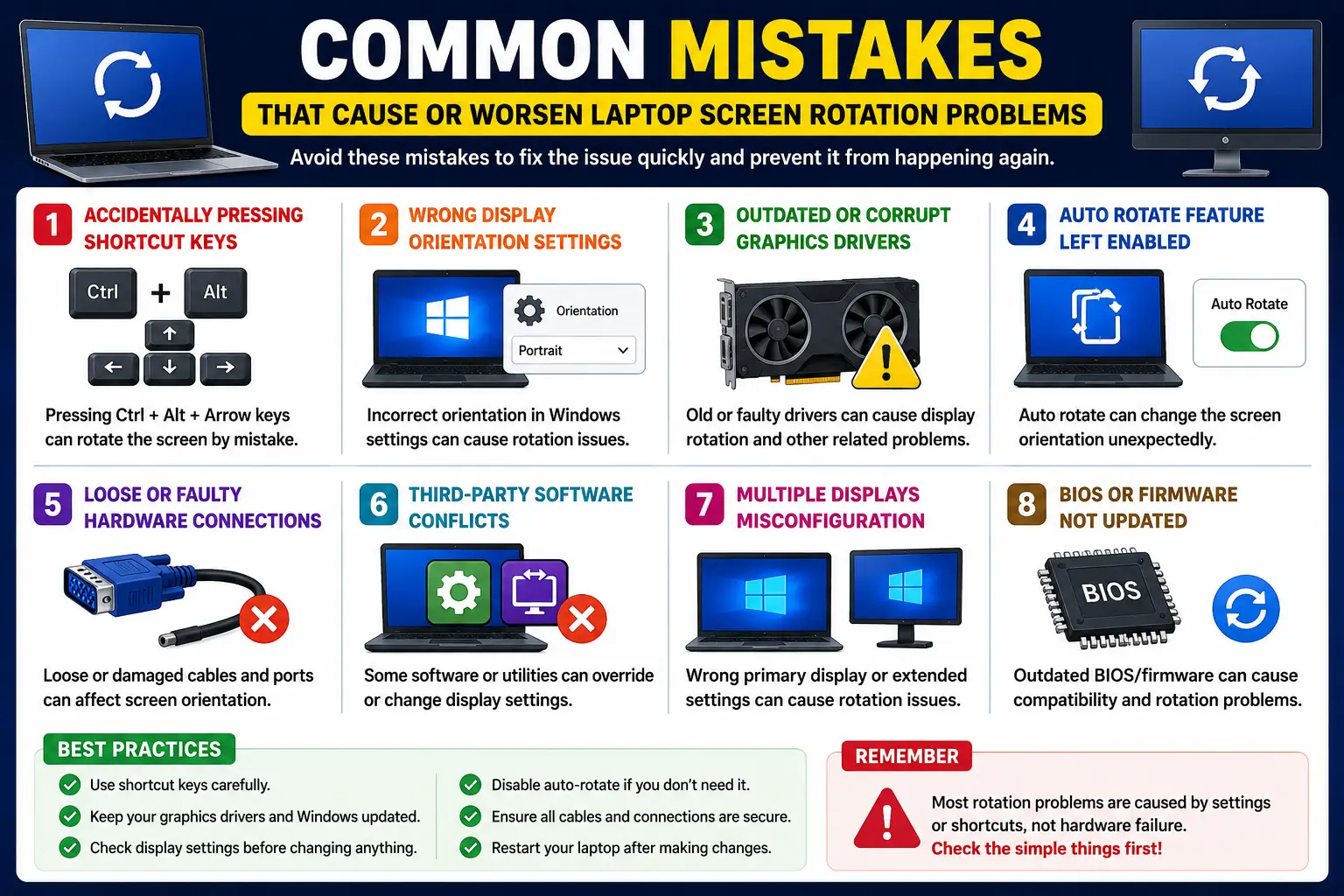
Many users accidentally worsen display rotation issues.
Accidentally Pressing Shortcut Keys
Users often trigger orientation shortcuts unintentionally. Consequently, screens rotate suddenly.
Ignoring Driver Updates
Outdated graphics drivers frequently create persistent orientation conflicts.
Changing Advanced Settings Randomly
Incorrect BIOS or registry changes may create additional system instability.
Using Untrusted Software
Third-party display tools sometimes override Windows orientation settings incorrectly.
Future Outlook
Display technology continues evolving rapidly.
Future Trends Related To Laptop Screen Rotation resolve
AI-powered orientation systems may automatically detect user preferences more accurately.
Improved Sensor Technology
Future laptops may include smarter and more reliable orientation sensors.
Consequently, automatic rotation problems may decrease significantly.
Conclusion
Learning laptop screen rotation fix methods is essential for modern Windows users. Whether the issue occurs because of shortcut keys, outdated drivers, rotation lock settings, or sensor problems, most orientation issues can be solved safely.
Moreover, Windows includes several built-in troubleshooting tools that help restore normal orientation quickly.
If the problem continues after applying all fixes, reinstalling graphics drivers or checking hardware sensors may become necessary.
Ultimately, proper troubleshooting improves productivity, reduces frustration, and helps users maintain stable Windows performance.
Internal Links
- https://readsinfo.com/
- https://readsinfo.com/category/technology/
- https://readsinfo.com/about-readsinfo/
- https://readsinfo.com/category/education/
- https://readsinfo.com/category/online-earning/
External Links
- https://support.microsoft.com/windows
- https://www.intel.com/content/www/us/en/support.html
- https://www.nvidia.com/en-us/support/
- https://www.amd.com/en/support
- https://learn.microsoft.com/windows/
FAQ Section
How can I do laptop screen rotation solve quickly?
Press:
Ctrl + Alt + Up ArrowMoreover, you can restore orientation using Windows display settings.
Why did my laptop screen rotate suddenly?
This usually happens because shortcut keys were pressed accidentally.
Why is auto rotation not working?
Rotation Lock or disabled sensors may stop automatic rotation functionality.
Can outdated drivers cause orientation issues?
Yes, outdated graphics drivers frequently create display orientation conflicts.
How do I disable Rotation Lock?
Go to:
- Settings
- System
- Display
Then disable Rotation Lock.
Why is my screen upside down?
Incorrect orientation settings or shortcut keys usually cause this problem.
Does Windows Update fix orientation problems?
Yes, updates frequently improve graphics compatibility and orientation stability.
Can Intel Graphics software control orientation?
Yes, Intel Graphics Command Center includes display rotation settings.
Is screen rotation problem hardware related?
Most issues are software-related. However, damaged sensors may affect convertible devices.
Should I reinstall graphics drivers?
Yes, reinstalling drivers often solves persistent orientation problems.
Disclaimer
This article is for educational and informational purposes only. Display settings, graphics drivers, and orientation features may vary depending on laptop manufacturer, Windows version, and GPU hardware. Always backup important data before changing advanced system settings or reinstalling drivers.

Gul Fahad is the founder of Readsinfo and a content creator focused on Artificial Intelligence, Technology, Online Earning, and Education. He shares practical guides, digital learning resources, and real-world insights to help readers develop valuable skills and stay updated with modern trends.