Complete Guide to Make Bootable USB for Windows Installation
Quick Overview If you want to make bootable USB for Windows, this complete guide explains every beginner and advanced method in a simple way. Moreover, you will learn how to use Rufus, CMD DiskPart, Ventoy, and Media Creation Tool safely for Windows installation, troubleshooting, and recovery. Table Briefing Section Section Details Introduction Understanding Windows bootable…
Quick Overview
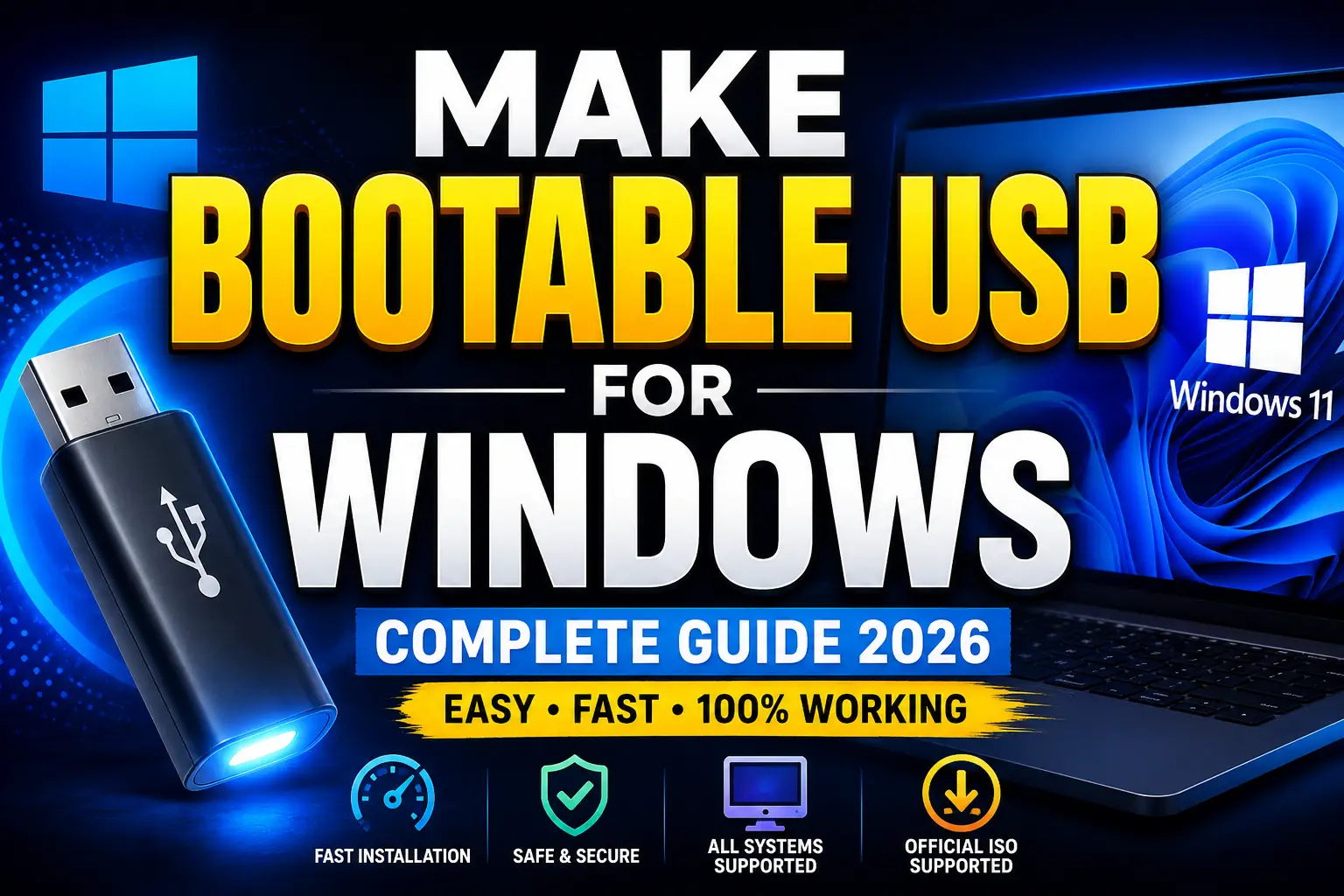
If you want to make bootable USB for Windows, this complete guide explains every beginner and advanced method in a simple way. Moreover, you will learn how to use Rufus, CMD DiskPart, Ventoy, and Media Creation Tool safely for Windows installation, troubleshooting, and recovery.
Table Briefing Section
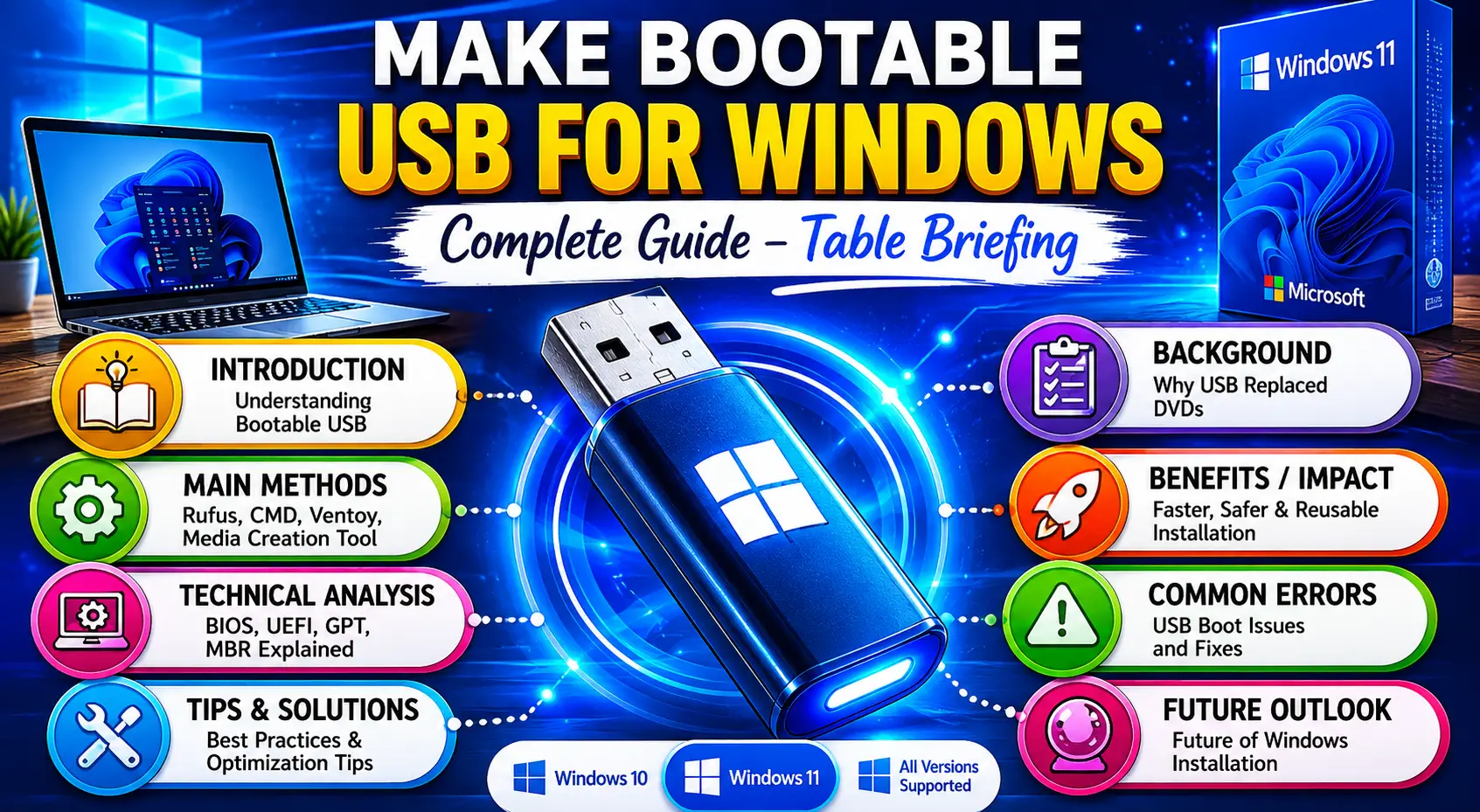
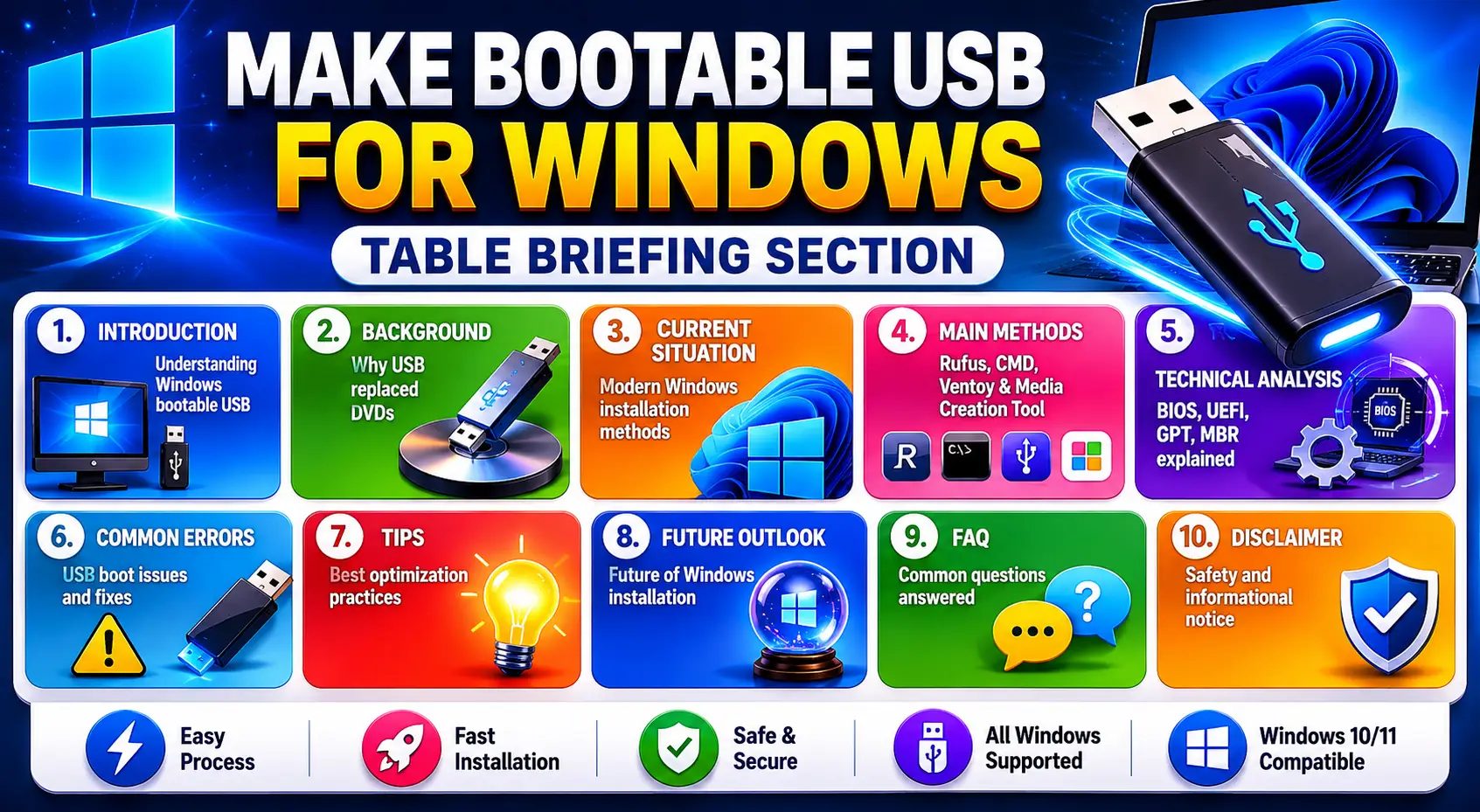
| Section | Details |
|---|---|
| Introduction | Understanding Windows bootable USB |
| Background | Why USB replaced DVDs |
| Current Situation | Modern Windows installation methods |
| Main Methods | Rufus, CMD, Ventoy, Media Creation Tool |
| Technical Analysis | BIOS, UEFI, GPT, MBR explained |
| Common Errors | USB boot issues and fixes |
| Tips | Best optimization practices |
| Future Outlook | Future of Windows installation |
| FAQ | Common questions answered |
| Disclaimer | Safety and informational notice |
Contents Section
- Introduction
- Background
- Current Situation
- Causes or Main Factors
- Main Discussion / Core Topic
- Benefits / Impact
- Deep Analysis
- Common Mistakes
- Tips or Solutions
- Future Outlook
- Conclusion
- FAQ Section
- Disclaimer
Introduction
Learning how to make bootable USB for Windows has become one of the most important computer skills today. Whether your computer is corrupted, infected with malware, stuck on startup, or running extremely slow, a Windows bootable USB can completely solve the problem through clean installation. Moreover, modern laptops no longer include DVD drives, which makes USB installation the preferred solution worldwide.
A bootable USB is a flash drive prepared with Windows installation files in a special startup format. Consequently, the computer can boot directly from the USB drive before loading the installed operating system. Therefore, users can install Windows 10 or Windows 11 quickly, safely, and efficiently.
Furthermore, technicians, gamers, office users, and students regularly make bootable USB because it provides faster installation speed and better reliability than DVDs.
Why Users Make Bootable USB for Windows
Most users make USB for Windows when their operating system becomes damaged or unstable. Additionally, many people create Windows installation USB drives for upgrading old systems or troubleshooting serious startup errors.
As a result, USB installation has become an essential part of modern computer maintenance.
Benefits of Learning How to Make Bootable Windows
Understanding how to make USB for Windows helps users repair systems independently. Moreover, it reduces repair costs and saves valuable time during emergencies.
Consequently, every computer user should learn this important technical skill.
Background
The method of Windows installation has evolved significantly over the years. Earlier, floppy disks and CDs were commonly used. However, technology improved rapidly, and USB drives became the standard installation medium.
Evolution of Make Bootable Windows Technology
During the Windows XP era, CDs were widely used for setup. Later, DVDs became common because Windows file sizes increased dramatically.
Nevertheless, DVDs introduced several disadvantages including scratches, slower speed, and hardware failures. Consequently, users started to bootable USB for Windows installations instead of relying on optical discs.
Why Modern Users Make Bootable USB for Windows
Modern laptops focus on portability and slim design. Therefore, manufacturers removed DVD drives from most devices.
Additionally, USB drives provide significantly faster data transfer speeds. As a result, Windows installation through USB became the global standard.
Current Situation
Today, almost every technician and advanced user knows how to make USB for Windows because it is essential for troubleshooting and installation.
Why Experts Make Bootable USB for installation Today
Computers frequently experience malware attacks, software corruption, startup failures, and update problems. Consequently, users often require fresh operating system installation.
In such situations, a bootable USB becomes extremely useful because it allows complete Windows installation without requiring internet access or DVDs.
Best USB Drives to Make Bootable USB for Windows
Experts recommend using at least 8GB USB storage. However, 16GB or 32GB USB drives provide better compatibility and reliability.
Moreover, USB 3.0 drives improve installation speed dramatically compared to older USB 2.0 devices.
Causes or Main Factors
There are several reasons why users decide to bootable USB for Windows installation.
Common Reasons to Make Bootable USB for installation
Many users create Windows bootable USB drives for reinstalling corrupted operating systems. Others use them for upgrading to Windows 11.
Similarly, technicians bootable USB for Windows daily for repairing customer systems efficiently.
Requirements Before You Make Bootable USB for Windows
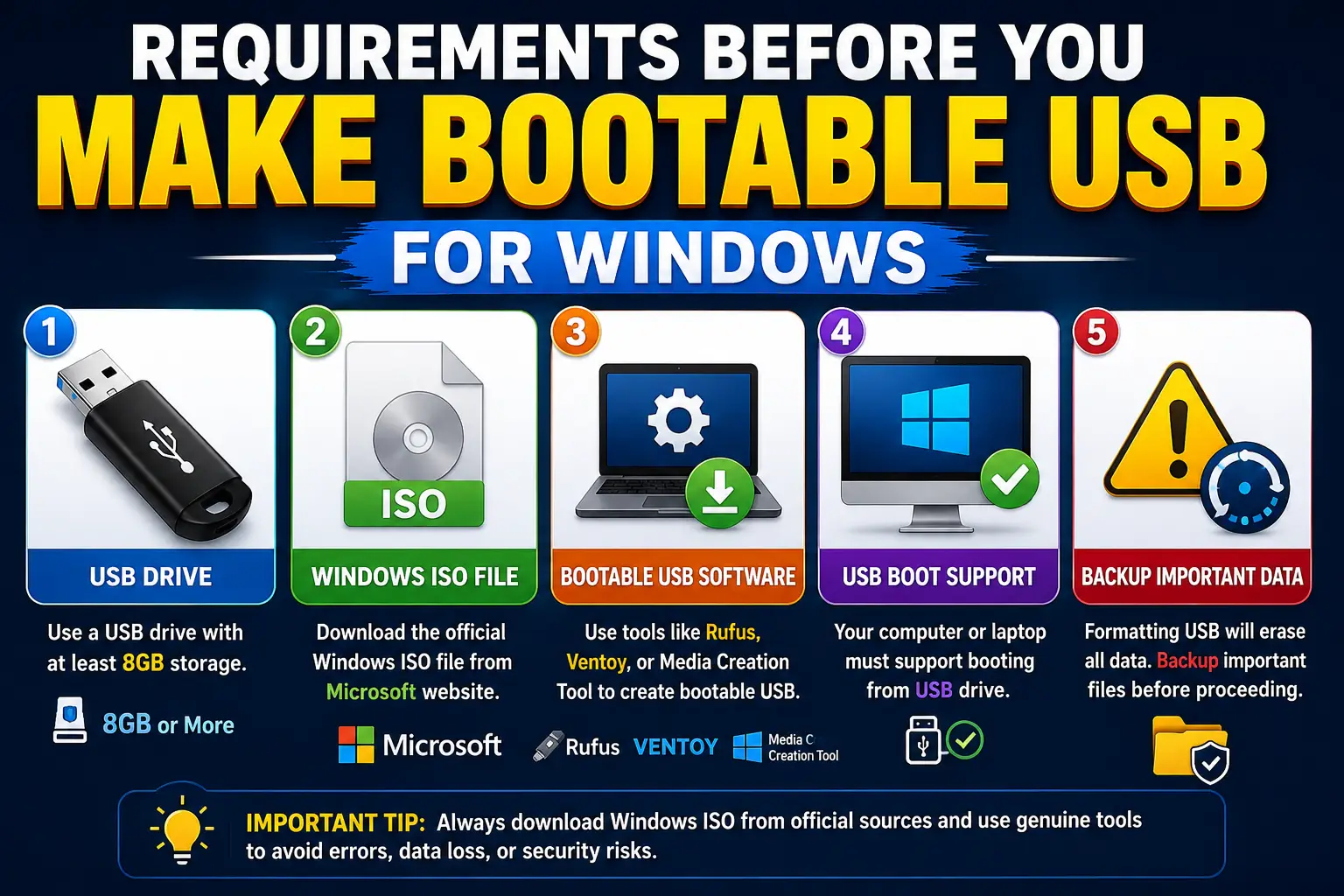
Before starting, you need:
- USB drive with minimum 8GB storage
- Windows ISO file
- Bootable USB software
- Computer supporting USB boot
Moreover, backup important USB files because formatting permanently deletes existing data.
Main Discussion / Core Topic
How to Make Bootable USB for Windows Using Rufus
Rufus is one of the fastest and easiest tools available today. Moreover, millions of users bootable USB for Windows using Rufus because it is reliable and beginner-friendly.
Download Tools to Make Bootable USB for Windows
Official Rufus website:
Official Microsoft ISO page:
https://www.microsoft.com/software-download/
Always download official ISO files because unofficial versions may contain malware or corruption.
Step-by-Step Guide to Make Bootable USB for installation Using Rufus
Insert your USB drive and open Rufus.
Then:
- Select USB device
- Choose Windows ISO file
- Select GPT for UEFI systems
- Select MBR for Legacy BIOS systems
Afterward, click Start.
Consequently, Rufus formats the USB drive and copies Windows setup files automatically.
Why Beginners Prefer Rufus to Make Bootable USB for Windows
Rufus is lightweight, portable, and extremely fast. Furthermore, it supports advanced configuration settings while remaining easy for beginners.
Therefore, technicians and everyday users trust Rufus worldwide.
How to Make Bootable USB for installation Using CMD DiskPart
CMD DiskPart is one of the most powerful built-in Windows tools. Moreover, advanced users often USB for Windows using CMD because it provides complete control.
Open CMD to Make Bootable USB for OS
Search for CMD.
Then:
- Right-click Command Prompt
- Select Run as Administrator
Type:
diskpartPress Enter.
Complete Commands to Make Bootable USB for OS
Carefully type the following commands:
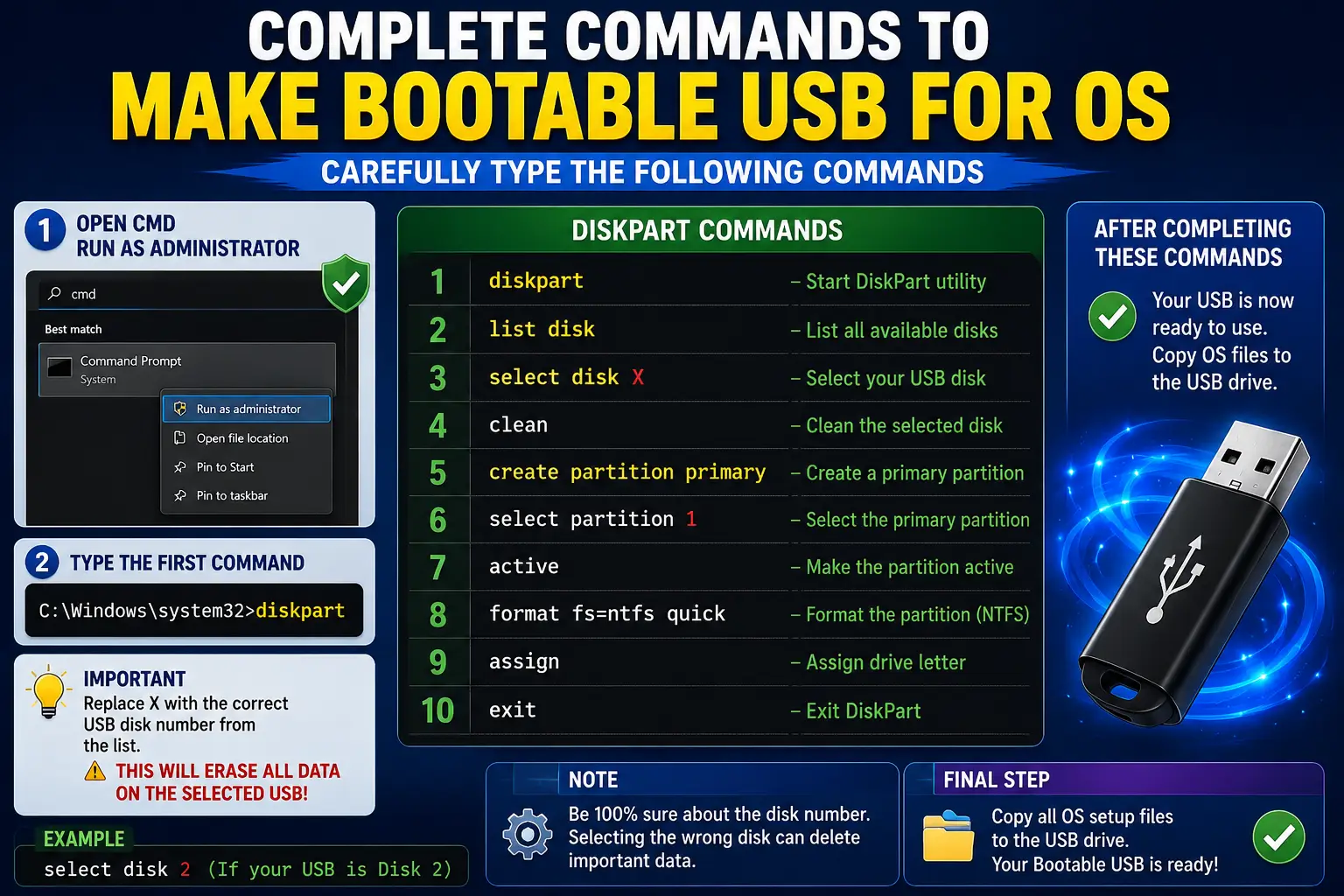
Open CMD Run as Administrator

Diskpart
list disk

select disk X

clean

create partition primary

select partition 1

active

format fs=ntfs quick

assign

exit
Replace X with your USB disk number carefully.
=”7917″>Final Step After You Make Bootable USB for Windows
After formatting finishes:
- Mount Windows ISO file
- Copy all setup files into USB drive
data-end=”8075″>Consequently, the USB becomes bootable for Windows installation.
a-end=”8136″>Why Technicians Make Bootable USB for Windows Using CMD
CMD DiskPart provides better partition control and troubleshooting flexibility. Therefore, many advanced users prefer this method during complex installation scenarios.
nd=”8378″>How to Make Bootable USB for Windows Using Media Creation Tool
Microsoft officially provides Media Creation Tool for Windows installation.
Download Official Tool to Make Bootable USB for OS
Official website:
https://www.microsoft.com/software-download/windows11
a-end=”8641″>Easy Process to Make Bootable USB for Windows
Open the tool and accept Microsoft terms.
Then:
- Select Create Installation Media
- Choose language and architecture
- Select USB Flash Drive option
The tool automatically downloads setup files and prepares the USB drive.
Why Microsoft Recommends This Method
This method comes directly from Microsoft. Consequently, users receive genuine installation files with latest updates included automatically.
Moreover, beginners find this process extremely simple.
nd=”9169″>How to Make Bootable USB for Windows Using Ventoy
Ventoy is an advanced tool allowing multiple ISO files on one USB drive.
end=”9309″>Why Professionals Make Bootable USB for Windows Using Ventoy
Traditional tools only support one operating system at a time. However, Ventoy allows multiple ISO files simultaneously.
Consequently, users can install Windows 10, Windows 11, Linux, and recovery tools from one USB drive.
nd=”9588″>Download Ventoy to Make Bootable USB for Windows
Official Website:
Install Ventoy on the USB drive.
Afterward, simply copy ISO files into the USB storage.
Benefits of Using Ventoy
Ventoy saves time and storage space significantly. Therefore, professional technicians widely prefer this advanced boot solution.
How to Boot PC After You Make Bootable USB for Windows
Creating the USB is only the first step. Afterward, users must boot the computer from the USB drive.
Open Boot Menu After You Make Bootable USB for Windows
Restart the computer and repeatedly press:
- F12
- ESC
- DEL
- F9
The exact key depends on laptop or motherboard brand.
Start Windows Installation from USB
Once the boot menu appears:
- Select USB device
- Press Enter
Consequently, Windows installation setup starts automatically.
Benefits / Impact
There are several advantages when users make bootable USB for Windows installation.
Faster Installation After You USB for Windows
USB installation is dramatically faster than DVD installation. Moreover, USB 3.0 technology improves setup speed significantly.
Therefore, users save valuable time during installation.
Better Recovery Options
Bootable USB drives can repair corrupted systems and troubleshoot startup issues efficiently.
Additionally, they help users recover from serious operating system failures.
Portable and Reusable Solution
USB drives are compact, reusable, and portable. Consequently, users can carry Windows installation tools anywhere conveniently.
Deep Analysis
Understanding technical concepts helps users make bootable USB for Windows successfully.
BIOS and UEFI Explained Before You Make USB for Windows
BIOS and UEFI are firmware systems controlling computer startup.
Understanding BIOS Systems
BIOS is older startup firmware found mainly in legacy computers.
However, BIOS has limitations regarding speed and security.
Understanding UEFI Systems
UEFI is modern firmware technology providing faster startup and improved protection.
Consequently, Windows 11 strongly recommends UEFI systems.
GPT vs MBR Before You Make Bootable USB for Windows
Choosing the correct partition style is extremely important.
GPT Partition Style
GPT supports larger drives and modern UEFI systems.
Moreover, GPT provides improved reliability and advanced partition support.
MBR Partition Style
MBR works mainly with older BIOS systems.
Nevertheless, it has storage and partition limitations.
Therefore, GPT is recommended for modern computers.
FAT32 vs NTFS While You Make Bootable USB for Windows
Selecting correct file systems affects compatibility and installation success.
FAT32 Features
FAT32 supports UEFI systems widely.
However, it cannot store files larger than 4GB.
NTFS Features
NTFS supports large files and improved security features.
Consequently, many Windows installations work better with NTFS formatting.
Common Mistakes
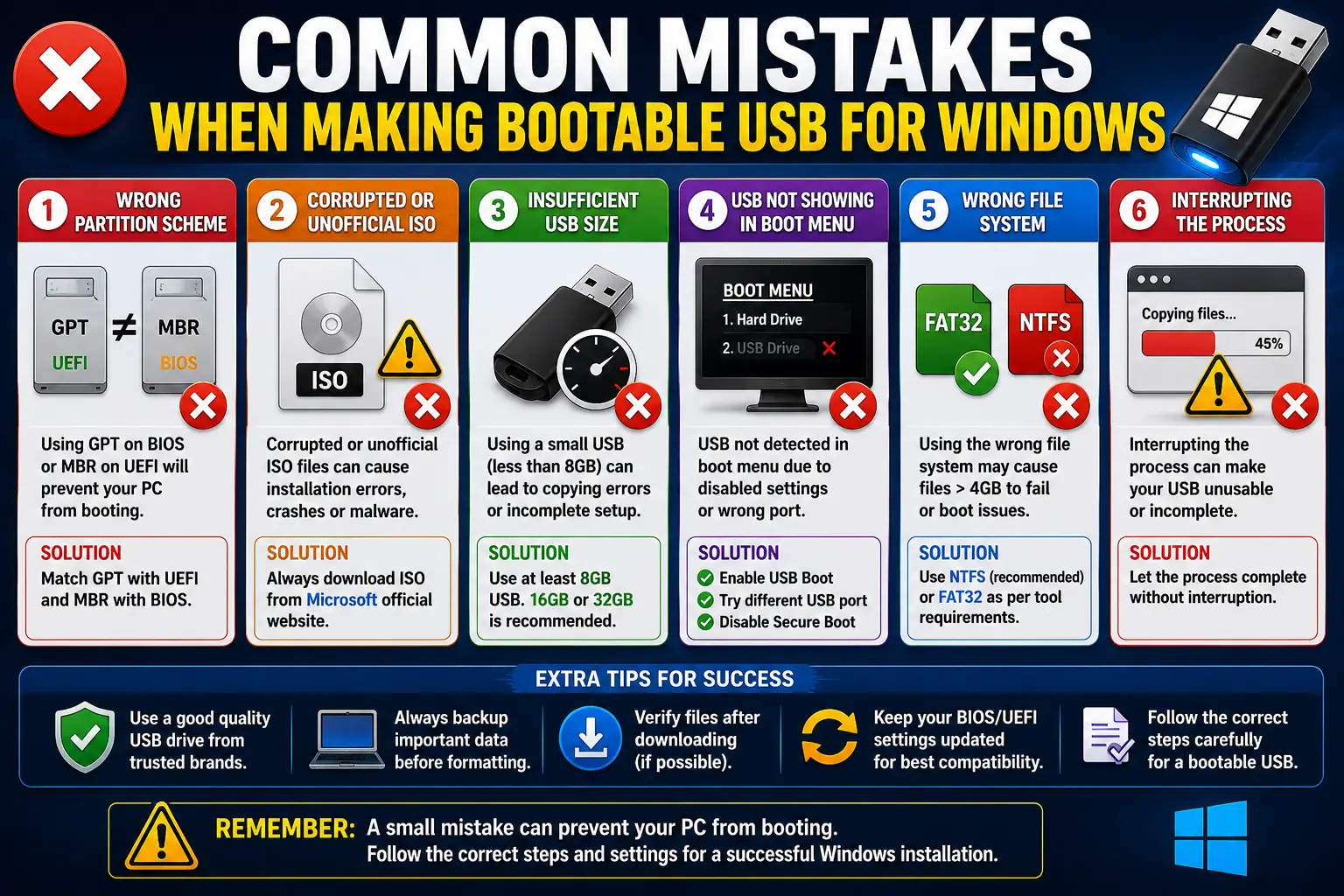
Many beginners make errors while trying to make bootable USB
Wrong Partition Scheme
Selecting GPT instead of MBR or vice versa may prevent startup.
Therefore, always verify BIOS or UEFI mode before creating the USB drive.
Corrupted ISO Files
Unofficial ISO files frequently contain errors or malware.
Consequently, users should always download setup files from Microsoft official websites.
USB Not Showing During Startup
Sometimes USB drives fail to appear in Boot Menu.
In such situations:
- Enable USB Boot
- Disable Secure Boot temporarily
- Try different USB ports
Tips or Solutions
Following correct practices improves installation success significantly.
nd=”13360″>Best Practices to Make Bootable USB for Windows
ata-start=””>=”13362″ data-end=”13471″>Use genuine USB drives from trusted brands. Moreover, always verify downloaded ISO files before installation.
Additionally, keep backup copies of important files before formatting USB drives.
Verify Settings Before You Make Bootable USB for Windows
ata-start=””>=”13618″ data-end=”13631″>Always match:
- GPT with UEFI
- MBR with BIOS
This prevents installation errors and boot failures.
Use USB 3.0 Devices
USB 3.0 drives improve installation speed dramatically. Consequently, Windows setup completes much faster.
Future Outlook
Windows installation methods continue evolving rapidly.
Future Trends Related to Make Bootable USB for Windows
ata-start=””>=”13994″ data-end=”14166″>Microsoft is improving cloud recovery systems continuously. Nevertheless, offline USB installers remain extremely important because internet access is not always available.
Faster Technologies for Windows Installation
USB 4.0 and Type-C technologies provide incredibly fast transfer speeds.
Consequently, future Windows installations will become even smoother and faster.
Conclusion
-end=”14630″>Learning how to make bootable USB for Windows is an essential computer skill for modern users. Whether you use Rufus, CMD DiskPart, Ventoy, or Microsoft Media Creation Tool, each method provides reliable Windows installation capability.
Moreover, USB installation is faster, safer, and more convenient than DVDs. Therefore, understanding BIOS, UEFI, GPT, and MBR concepts helps users avoid installation failures and troubleshooting issues.
If you are a beginner, Rufus and Media Creation Tool are excellent choices. However, advanced users often prefer CMD DiskPart and Ventoy because they provide greater flexibility and customization.
Ultimately, when users USB for Windows correctly, they can repair systems, reinstall operating systems, and solve serious computer problems efficiently.
Internal Links
- Complete Windows Installation Tutorials
- Advanced PC Troubleshooting Guides
- Windows Performance Optimization Tips
- Technology Tutorials on Readsinfo
- Beginner Computer Repair Guides
External Links
- https://rufus.ie
- https://www.microsoft.com/software-download/
- https://www.ventoy.net
- https://etcher.balena.io
- https://support.microsoft.com/windows
Recommended Video Tutorials
Rufus USB Installation Tutorial
https://www.youtube.com/results?search_query=rufus+usb+installation+tutorial
CMD DiskPart Windows USB Guide
https://www.youtube.com/results?search_query=cmd+diskpart+windows+usb+guide
Ventoy Multi-ISO USB Tutorial
https://www.youtube.com/results?search_query=ventoy+multi+iso+usb+tutorial
Media Creation Tool Walkthrough
https://www.youtube.com/results?search_query=media+creation+tool+windows+guide
FAQ Section
What is the easiest method to make bootable for Windows?
Rufus and Media Creation Tool are considered the easiest methods because they provide beginner-friendly setup interfaces.
Can I make USB for Windows without software?
Yes, CMD DiskPart allows users to create Windows installation USB drives manually without external software.
Which USB size is best to make bootable USB?</h3>
a-start=”16553″ data-end=”16665″>At least 8GB USB storage is required. However, 16GB or 32GB drives provide better compatibility and performance.
Why does my PC not detect bootable USB?
This usually happens because USB Boot is disabled, wrong partition scheme is selected, or Secure Boot settings interfere with startup.
Is Rufus safe for Windows installation?
Yes, Rufus is trusted globally and widely used for Windows installation media creation.
Disclaimer
This article is for educational and informational purposes only. Always backup important files before formatting drives or reinstalling Windows. Software tools, installation methods, and Microsoft requirements may change depending on system updates and hardware compatibility. Use official Windows ISO files and trusted software sources to avoid malware, corrupted installations, or data loss.

Gul Fahad is the founder of Readsinfo and a content creator focused on Artificial Intelligence, Technology, Online Earning, and Education. He shares practical guides, digital learning resources, and real-world insights to help readers develop valuable skills and stay updated with modern trends.